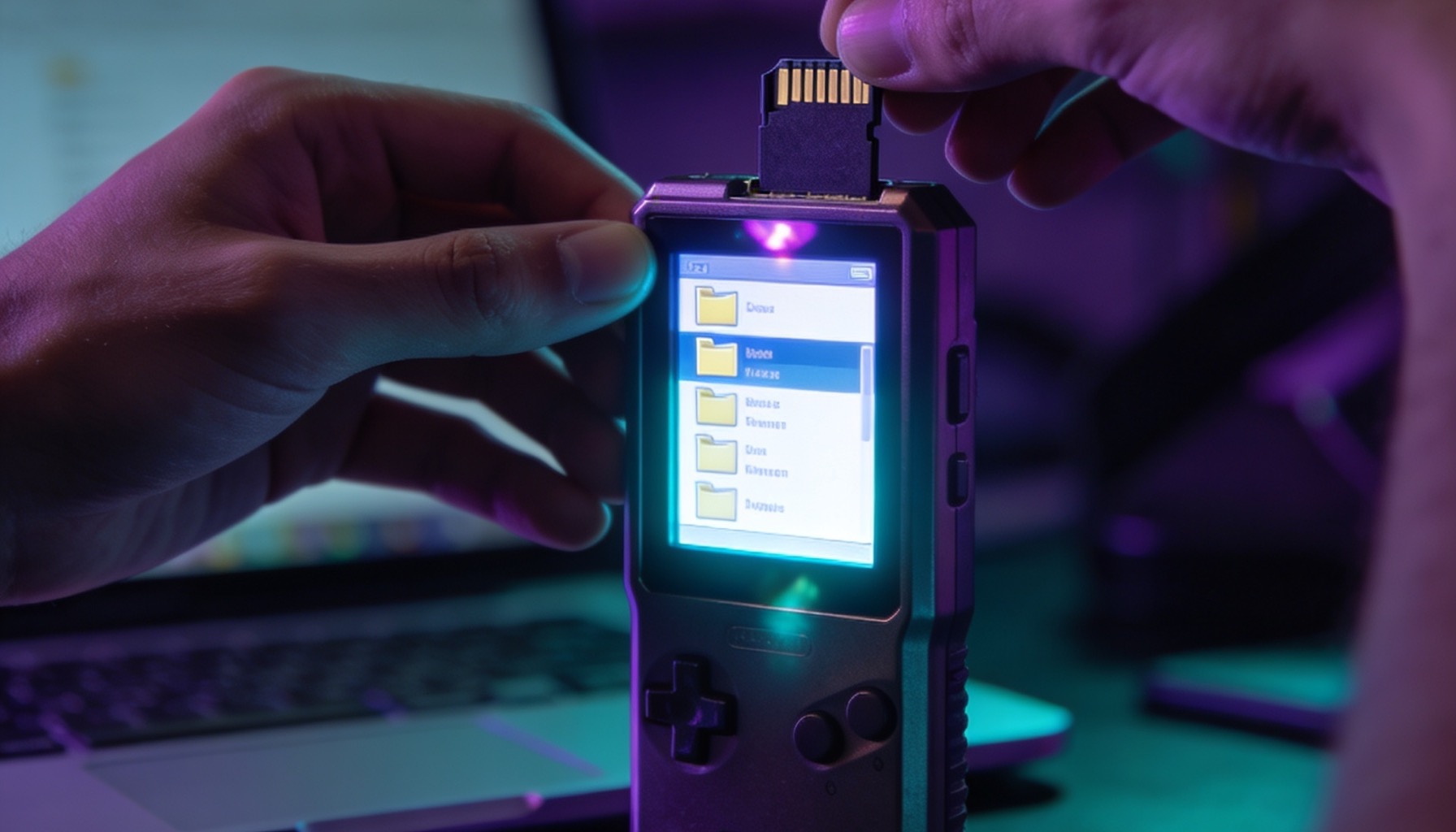
Quick answer
Your R36S already arrives with 40,000+ games loaded, but adding more takes a few minutes: power it off, copy your own legally owned ROMs onto the second (ROMS) microSD card in the folder that matches the system, then refresh the game list.
- Step 1: Power the R36S off and eject the card from the second slot, the ROMS card, never the OS card.
- Step 2: Put that card in a reader on your PC or Mac and open the EASYROMS partition.
- Step 3: Drop each ROM into its matching system folder (
psx,snes,gba,megadriveand so on). - Step 4: Use the format that system expects,
.chdor.bin/.cuefor PS1,.iso/.csofor PSP,.smc/.sfcfor SNES, zipped romsets for arcade. - Step 5: Safely eject, slide the card back into slot two, then run Update Game Lists (or restart) so the new titles appear.
Your R36S arrives with over 40,000 games already loaded, so for most people there is nothing to set up, just turn it on and play. But the R36S is also wonderfully easy to expand. If you legally own ROMs of games you want to add, or you simply want to organise your own collection, you can copy new titles onto the device in a few minutes.
This guide walks you through exactly how the R36S stores its games, which SD card to use, the correct folders, the file types each system accepts, and how to make new games actually show up in the menu.
A quick legal note: only add ROMs of games you legally own. We cannot supply ROMs and this guide is for managing your own legitimate backups.
How the R36S Stores Games: The Two-Card System
This is the single most important thing to understand. The R36S has two microSD card slots, and they do very different jobs:
- Card 1 (the OS card): This holds the operating system and emulators. Leave this one alone. Do not format it, do not add games to it. If you damage this card the device will not boot.
- Card 2 (the ROMS / games card): This is the 128GB card that holds all your games. This is the only card you touch when adding games.
The slots are usually labelled on the device. Slot 1 (often marked "TF1" or "OS") sits next to the OS, and slot 2 ("TF2" or "ROMS") is for games. When you want to add games, you remove the second card, not the first.
Step 1: Power Off and Remove the ROMS Card
Always shut the R36S down fully before removing a card, pulling it while the device is on can corrupt files. Once it is off, push in the card in the second slot until it clicks and pops out. This is your games card.
Step 2: Put the Card in Your Computer
Insert the microSD card into a card reader and plug it into your PC or Mac. When it mounts, you will see a partition usually named EASYROMS (or simply ROMS, depending on firmware). Open it and you will find a tidy set of folders, one per system.
Step 3: Find the Right System Folder
Each console has its own folder, and the R36S only scans games that are in the correct folder. Here are the common folder names you will see:
- psx: PlayStation 1
- psp: PlayStation Portable
- snes: Super Nintendo
- nes: Nintendo Entertainment System
- gba: Game Boy Advance
- gbc: Game Boy Color
- gb: Game Boy
- megadrive (or genesis): Sega Mega Drive / Genesis
- n64: Nintendo 64
- dreamcast: Sega Dreamcast
- arcade / mame / fbneo: Arcade
The golden rule: a game only appears if it is inside the matching folder. A SNES ROM dropped into the nes folder will not show up, or will fail to launch. Match the system to the folder every time.
Step 4: Copy Your Games in the Correct Format
Each emulator expects specific file types. Use these and you will avoid almost every "game won't load" problem:
- PS1 (psx):
.bin+.cue,.chd, or.pbp. CHD is best, it is a compressed single file that saves space. - PSP (psp):
.isoor.cso. - SNES (snes):
.smcor.sfc. - NES (nes):
.nes. - Game Boy Advance (gba):
.gba. - Mega Drive (megadrive):
.md,.binor.gen. - N64 (n64):
.z64,.n64or.v64. - Dreamcast (dreamcast):
.chdor.gdi. - Arcade: keep ROMs as
.zipfiles, do not unzip them. Arcade ROM sets must also match the emulator's romset version.
If a game comes zipped (other than arcade), most systems can also read a plain .zip containing a single supported ROM, but unzipped files are the safest bet.
Step 5: Eject Safely and Reinsert
When the copy finishes, safely eject the card from your computer (Windows: "Safely Remove Hardware"; Mac: drag to the bin or click eject). Ejecting properly ensures every file is fully written, this single step prevents the most common cause of corrupted or half-copied games.
Then slide the ROMS card back into the second slot of the R36S until it clicks, and power the device on.
Step 6: Refresh the Game List
New games do not always appear immediately, because the R36S caches its game list. To force it to rescan:
- From the main menu, press Start to open the menu, go to Game Settings (or UI Settings), and choose Update Game Lists or Gamelist Refresh.
- If you do not see that option, a full restart will trigger a rescan on boot.
Your new titles should now appear under the correct system. Box art and game descriptions can be added later via the built-in scraper if your firmware supports it, but the game will play perfectly without them.
Troubleshooting: New Games Not Showing Up
If a game refuses to appear or launch, run through this checklist, it solves the vast majority of cases:
- Wrong folder. The most common mistake. Double-check the ROM is in the folder for its actual system.
- Wrong file type. A
.raror.7zarchive will not run, extract it to a supported format first. - Hidden files. Mac users: macOS sometimes adds hidden
._files. These are harmless but can clutter the list; ignore them. - Missing BIOS. A few systems (PS1, PSP, Dreamcast) need a BIOS file in the right place to run. The R36S ships with these set up, but if you reformatted the card you may need to restore them.
- You edited the OS card by mistake. If the device will not boot, you likely touched card 1. Re-image it from a known-good backup.
Back Up Before You Start
Before adding anything, it is worth copying the entire ROMS card to a folder on your computer. That way, if anything goes wrong, you can restore your card to exactly how it shipped. Cards are cheap; a freshly set up 40,000-game library is not something you want to recreate from scratch.
Prefer to Skip All This?
Honestly, you may never need to add a single game. Every R36S we ship comes pre-loaded with 40,000+ titles across 20+ systems, ready to play the moment it arrives, no PC, no cards, no fiddling.
That is the whole point of buying from a UK stockist. Every console is held in UK stock with Next Day Delivery available for £4.99, already configured and tested. If you have not bought yours yet, see the R36S product page or browse the full GameBro shop to find the right handheld for you.
Want to know which classics to load up first? Our guide to the 50 best games to play on your R36S is the perfect place to start.
Frequently Asked Questions
Which SD card do I add games to on the R36S?
Always the second card (the ROMS or EASYROMS card). The first card holds the operating system, never add games to it or format it, or the device will not boot.
Why are my new games not showing up?
The two most common reasons are putting the ROM in the wrong system folder, or using an unsupported file type (like a .rar or .7z archive). After copying, refresh the game list from the menu or restart the device to trigger a rescan.
What ROM formats does the R36S support?
It depends on the system, for example .chd or .bin/.cue for PS1, .iso/.cso for PSP, .smc/.sfc for SNES, and zipped romsets for arcade. See the format list above for each console.
Do I need a computer to add games?
Yes, you need a microSD card reader and a PC or Mac to copy files onto the ROMS card. If you would rather not, remember the R36S already comes with 40,000+ games pre-loaded.
Will adding games void anything?
No. Copying your own legally owned games onto the ROMS card is exactly what the device is designed for. Just keep a backup of the card first so you can always restore it.